Keyboard Shortcut to Snipping Tool for Quick Screenshot
Published: 12 Jan 2026
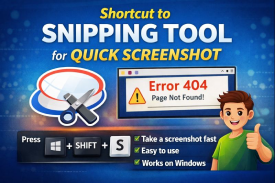
Keyboard Shortcut to Snipping Tool for Quick Screenshot lets you capture your screen very fast by pressing a few keys on your keyboard. It is a simple Windows feature that comes built into your computer, so anyone can use it without installing anything extra. This tool saves time and effort because you do not need to open apps or click many buttons. For example, a student can quickly capture important notes from an online class, and an office worker can share a screen error with their team in seconds. Using this shortcut makes taking screenshots easy and convenient for daily tasks.
Table of Contents
What is Snipping Tool
Snipping Tool is a tool that comes with Windows computers. It helps you take a screenshot, which is like taking a photo of whatever is on your screen. You can save the screenshot to look at later or share it with friends, teachers, or colleagues. For example, if you see an important message, an error, or a part of a webpage you want to keep, you can use Snipping Tool to capture it quickly. It is very easy to use and works for anyone, even beginners, without installing any extra software.
Keyboard Shortcut to Use
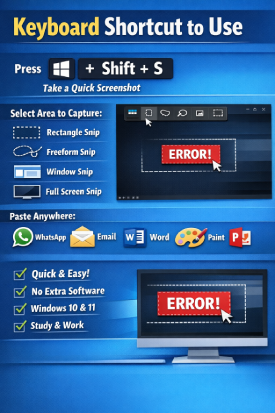
This shortcut helps you take a quick screenshot on Windows.
Press Windows key + Shift + S together.
Press all keys at the same time.
When you do this your screen becomes dark.
This means screenshot mode is active.
What Happens Next
A small menu appears at the top of the screen.
You will see a few options.
You can choose what you want to capture.
- Rectangle snip to select a box area
- Freeform snip to draw any shape
- Window snip to capture one window
- Full screen snip to capture everything
Most people use rectangle snip.
How to Select the Screen Area
Click and hold your mouse.
Drag over the area you want.
Release the mouse.
Your screenshot is now copied.
It is saved in the clipboard.
You can paste it anywhere.
Where You Can Paste It
- In WhatsApp chat
- In email
- In Word file
- In Paint
- In PowerPoint
Just press Ctrl + V to paste.
Real Life Example
You see an error message on your screen.
You want help from your teacher.
Press Windows key Shift and S.
Select only the error part.
Open WhatsApp or email.
Paste the image.
Send it.
Why This Shortcut Is Useful
- It is very fast
- No extra app needed
- Works on Windows 10
- Works on Windows 11
- Perfect for online work and study
Why Keyboard Shortcut to Snipping Tool for Quick Screenshot Is Important
This shortcut is important for many reasons.
It Saves Time
You do not open apps.
You do not search menus.
It Is Easy
Anyone can use it.
Even beginners can learn fast.
It Is Free
It comes with Windows.
No payment needed.
It Is Fast
One key press and done.
Difference Between Snipping Tool and Print Screen
Many people ask this question.
Print Screen Key
- Captures full screen
- No edit option
- Needs paste step
Snipping Tool Shortcut
- Select area
- More control
- Easy to use
That is why many people prefer Keyboard Shortcut to Snipping Tool for Quick Screenshot.
Common Problems and Easy Fixes
Shortcut Not Working
Check your keyboard.
Restart your PC.
Update Windows.
Screenshot Not Saving
Open Snipping Tool.
Save manually.
Screen Not Dark
Press keys together properly.
These steps fix most issues.
Final Thoughts
Keyboard Shortcut to Snipping Tool for Quick Screenshot is a must know feature that makes daily computer work easy. It saves time because you can capture your screen in seconds. It works fast and feels simple even for beginners. You do not need to install any extra software because everything is already built into Windows. You only need three keys to take a quick screenshot. This shortcut is useful for study and also for work when you need to share errors notes or important information. Practice it today and use it regularly to make your daily tasks smooth and stress free. Do you already use this shortcut or will you start today.
Frequently Asked Questions (FAQ)
Q1: What is the Snipping Tool?
A1: Snipping Tool is a Windows tool that lets you take a screenshot, which is a photo of your screen. You can save it or share it.
Q2: What is the keyboard shortcut for Snipping Tool?
A2: Press Windows key + Shift + S together to open Snipping Tool quickly.
Q3: How do I take a screenshot with this shortcut?
A3: Press the keys together, your screen will turn dark, and a menu will appear. Then select the area you want to capture.
Q4: Can I use this on Windows 10 and Windows 11?
A4: Yes, this shortcut works on both Windows 10 and Windows 11.
Q5: Do I need to install any app to use this shortcut?
A5: No, Snipping Tool comes built into Windows. You do not need to install anything.
Q6: How can I share the screenshot?
A6: After taking the screenshot, you can paste it into Word, Paint, email, or chat apps and send it.
Q7: Is this shortcut easy for beginners?
A7: Yes, it is very simple. Even beginners can use it quickly.






- Be Respectful
- Stay Relevant
- Stay Positive
- True Feedback
- Encourage Discussion
- Avoid Spamming
- No Fake News
- Don't Copy-Paste
- No Personal Attacks
- Be Respectful
- Stay Relevant
- Stay Positive
- True Feedback
- Encourage Discussion
- Avoid Spamming
- No Fake News
- Don't Copy-Paste
- No Personal Attacks
